You will have received an email from ixd_support@sheridancollege.ca with a login and password to the server phoenix.sheridanc.on.ca
With this account you will have access to LAMP (Linux Apache MySQL and PHP) for your course. Your website can be accessed at the following URLs:
- myaccount.phoenix.sheridanc.on.ca
- http://phoenix.sheridanc.on.ca
You will need to set your email address both in CPanel and WordPress so that password resets and quota warnings will reach you. This guide will assist you with that task. Note you will have a separate login and password for WordPress, please be aware of which account is being used in each step.
Login to CPanel/Phoenix
Step 1:
- To login to your firebird account, go to http://phoenix.sheridanc.on.ca and enter the username and password you have been emailed. If you did not receive a CPanel Web Account email please contact galaszki@sheridancollege.ca for support.
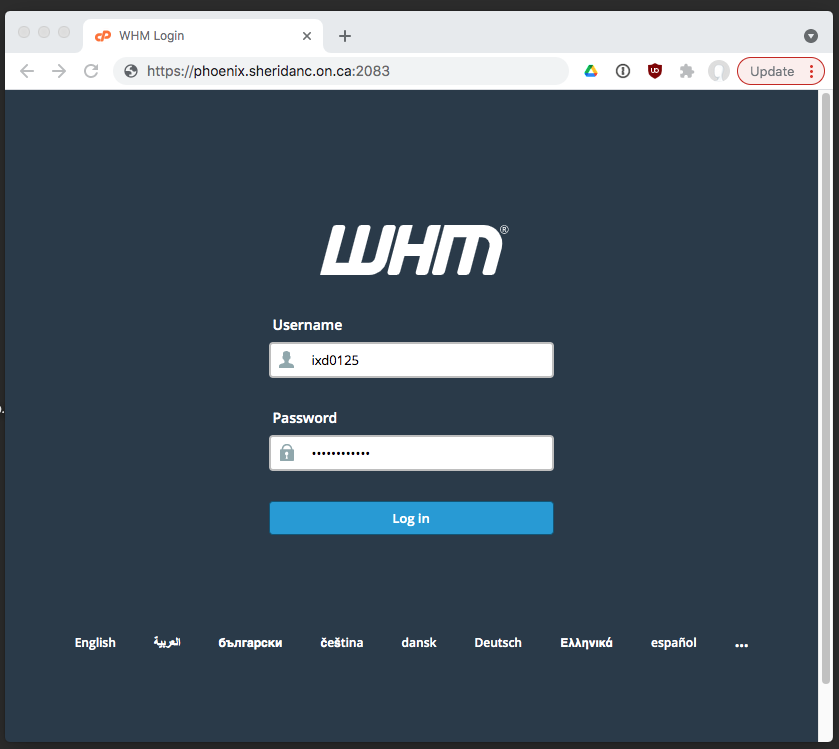
Step 2:
- In the upper right corner, click on your account name to select the "Contact Information" Page

Step 3:
- Change the email address to your Sheridan College email address.
- DO NOT use any other Gmail, Yahoo, etc non-sheridan addresses as they will not pass the firewall and you will not be able to do password resets or get other notifications.

Step 3:
- To change your password repeat step 2, but this time select "Password & Security"

- Create a password that is complex (8 characters long, one uppercase, one lowercase, and contains alphanumerical characters). Your password strength needs to be at least 65 (according to the strength meter displayed). You can also use the password generator provided on the page.

Uploading files to phoenix with FTP
To upload files to firebird use the following settings in any modern FTP client:
- Use SFTP not FTP
- host is phoenix.sheridanc.on.ca
- use your CPanel login id
- use your CPanel password provided to you
- always click into public_html before uploading files
Download the free Cyberduck app here:
Step 1:
- DO NOT use the "Open Connection" button in the upper left corner of the app, instead create a "New Bookmark" in the Bookmark menu option or by click on the plus sign button on the bottom left

Step 2:
- Change the connection type from FTP to SFTP on the first drop down box. Fill in the username and password fields with your CPanel account given to you by email in the first week of class, with the subject heading "IXD Cpanel Account Info"
- Open the advanced setting by clicking on the black triangle
- Fill in the Web URL so that right-clicking on files and previewing the website will have the correct URL

Step 3:
- Click on Allow button for the changed fingerprint prompt, if it comes up

- The directory listing should look like the picture below, if it does not, (for instance it shows a large listing of files and folders) then you may have not filled the path field or have a typo in the path field. To verify, go to the Bookmark menu and select "Toggle bookmarks" then right click on the entry for your phoenix connection and select "Edit Bookmark". Verify the path field.
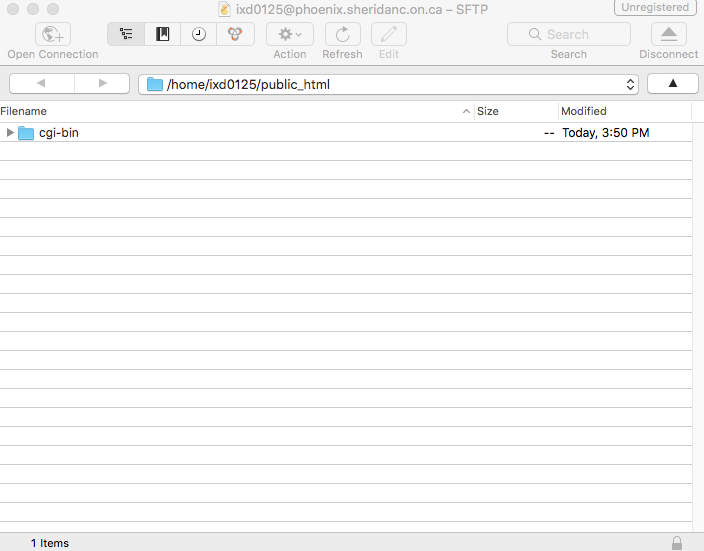
- This directory is the root of your website of your WordPress URL (ex: http://ixd0125.phoenix.sheridanc.on.ca)
- You may drag and drop html files from your local machine into this window to copy the file up to the server.
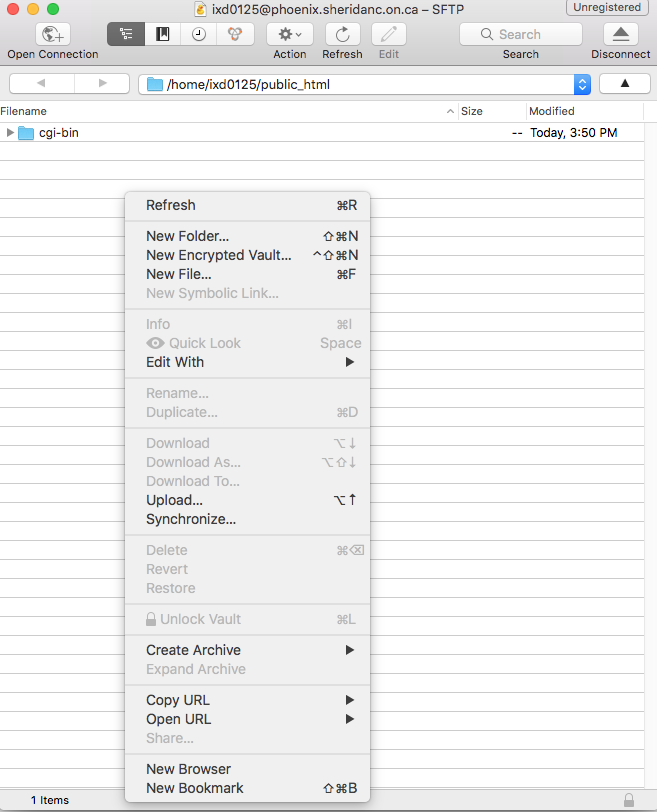
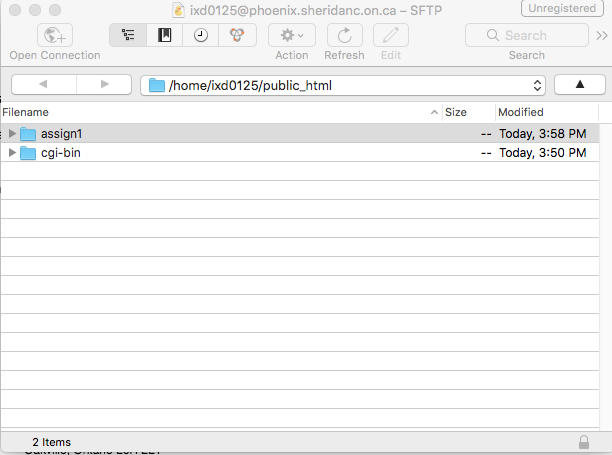
- In this example I created a folder called "assign1". Double-click on that folder to enter it.
Step 4:
- Drag and drop a file you created into the Cyberduck window.
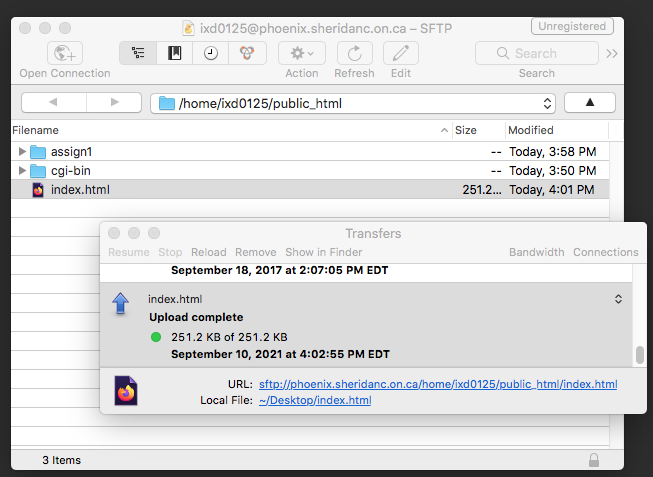
- You may create a index.html file using a text editor, such as Textedit(MAC) or Notepad(WIN).
- In the text editor place the following text for a basic HTML page. Be sure to save the file as Unix (LF).
<!DOCTYPE html>
<html>
    <head>
        <title>Example</title>
    </head>
    <body>
        <p>This is an example of a simple HTML page with one paragraph.</p>
    </body>
</html>
If you had created a index.html file as above, and copied it to the public_html/assign1 directory, then the owner of account ixd0125 would able to see their webpage at a URL such as so:
- http://ixd0125.phoenix.sheridanc.on.ca/assign1